
MetaTrader screenshots
Analyze MT4 and MT5 charts with AI.
From MT4 or MT5, any broker: export the chart with File then Save As Picture, upload the image, and get a written read back: the trend on that period, the levels price reacted to, both scenarios, and the level that invalidates the read.
Read my MetaTrader chart
Drop the exported chart image below. It stays in your browser through account setup and onboarding, then your first read comes back as a partial preview until a plan unlocks it in full.
Drop your chart screenshot, or click to choose
PNG, JPEG or WebP, up to 5MB
Create your account and personalize Lynx. Your first read opens as a partial preview; a plan unlocks the full read.
Upload before signup · Educational only, not financial advice
An example read
This is what comes back from an exported chart.
A EUR/USD H4 export, read the way every pair is read: a verdict, the levels that matter, both scenarios, and the level that invalidates the whole thing. Sample output on a chart captured 14 September 2026 — educational only, not advice.
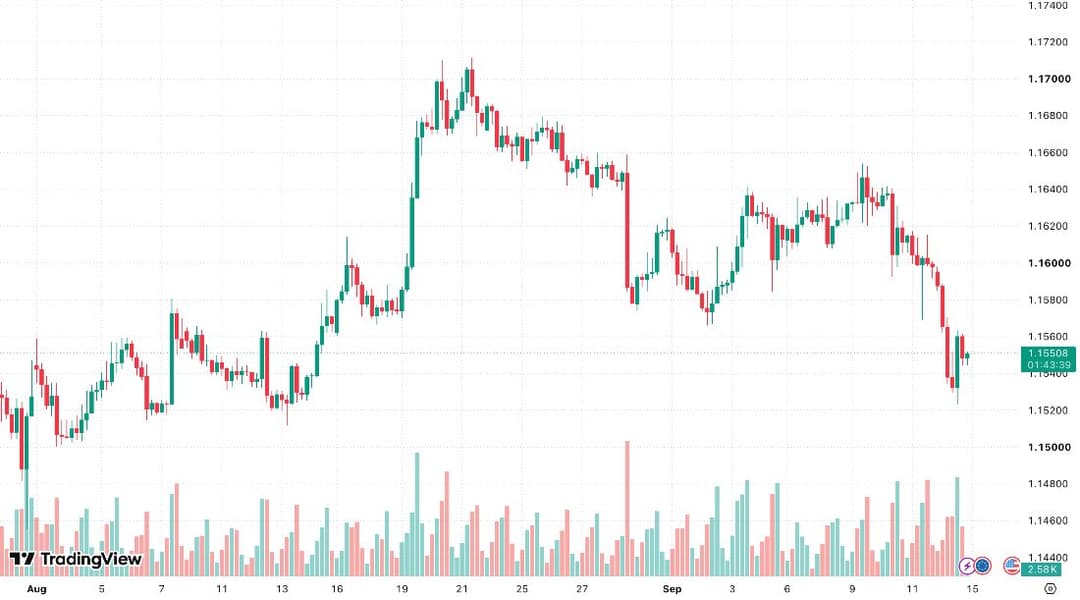
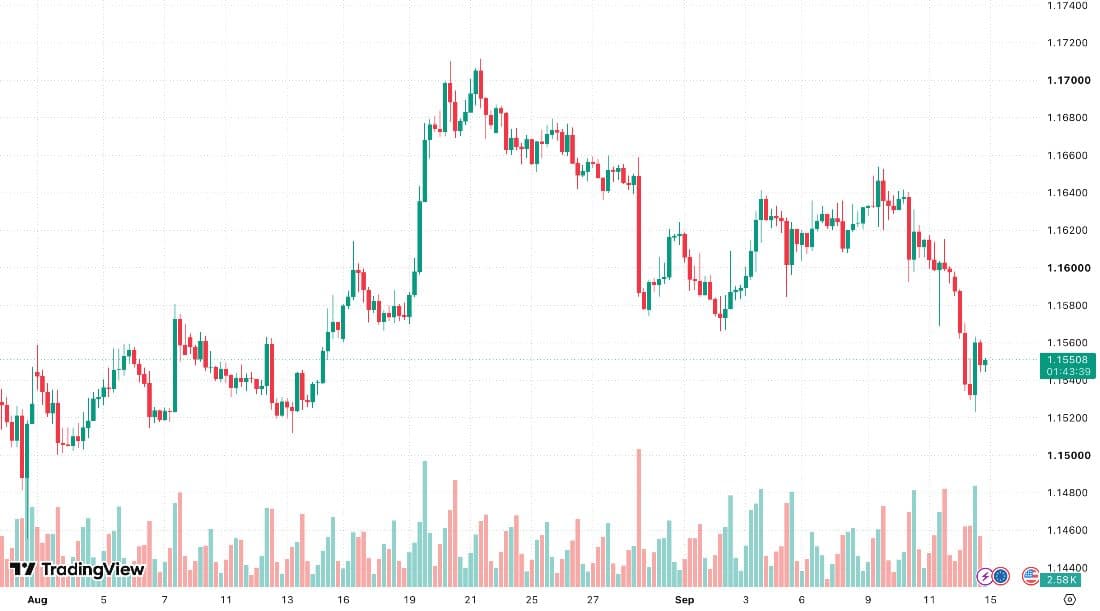
Still: chart by TradingView, 14 Sep 2026.
Why MetaTrader users need an outside reader
MT4 and MT5 are execution terminals with a scripting language attached. Expert Advisors and custom indicators are rule-based MQL programs: they compute exactly what you tell them to compute, and they do not read a chart the way a person does. There is no assistant in the platform that will look at your H4 EURUSD chart and describe the structure back to you in words.
That gap is why the screenshot workflow suits MetaTrader better than any other platform. You do not install anything, you do not give a third party terminal access, and you do not break a prop firm rule about automated systems, because nothing is automated and nothing is connected. You export an image and get a written second opinion on it.
The same workflow, described without the platform detail, is on the chart screenshot analyzer page, and the category overview is on AI chart analysis.
How to screenshot an MT4 or MT5 chart
The default MetaTrader theme was designed for a small monitor in 2005. A few template changes make a large difference to what comes back.
- Use File then Save As Picture
- Both MT4 and MT5 export the active chart from the File menu. Choose the active chart as it is on screen at a large size, such as 1600 by 900, so the candles and the axis stay sharp.
- Or take an operating system screenshot
- Cmd+Shift+4 on macOS, the Snipping Tool or Win+Shift+S on Windows. Capture the full chart window rather than a tight crop, and never rescale the image afterwards.
- Turn the price grid and axis labels on
- Right click the chart, open Properties, and make sure Show grid and Show price levels are enabled. The axis is what turns a described zone into a numeric level.
- Fix a readable template
- A light background with dark candle bodies and thin borders reads better than the stock black theme with green and red bars. Increase the chart scale so wicks are visible, and save it as a template you reuse.
- Show the symbol and period
- The MetaTrader window title carries the symbol and timeframe, for example EURUSD,H4. Keep that strip in the capture so the read can name the instrument and the period it is describing.
Levels in pips, and what to do with them
On a forex chart the useful unit is distance, not price. A read that names 1.1600 as resistance and 1.1640 as the invalidation is telling you the idea costs 40 pips to test. That number is the only input the rest of your risk process needs: with an account size and a percentage you are willing to risk, the lot size follows arithmetically.
Sample output. Not a live analysis.
The structural stopThe 40 pips, drawn: 1.1640 sits over the swing high that would have to break. A fixed pip distance sits where nothing on the chart happened, so it tells you nothing.
Educational analysis only. Not financial advice. DYOR.
Two caveats keep pip distances honest. First, a pip is worth a different amount on every pair and in every account currency, so 40 pips on EURUSD and 40 pips on GBPJPY are not the same risk. Second, a screenshot cannot see your broker spread or your commission, and on a tight intraday level those costs matter relative to the distance. Work them out on your side before deciding whether a setup is worth the room it needs.
Do the arithmetic with the pip value calculator and the position size calculator, then turn the size into lots with the forex lot size calculator. Charting on TradingView or thinkorswim instead? The same read, with each platform’s capture steps, is on TradingView chart analysis with AI and thinkorswim chart analysis with AI. Background reading: the best AI for forex trading, how to read forex charts, and pip value explained.
What it cannot do with a MetaTrader screenshot
Six limits, stated plainly, because a forex read that pretends to know your account is worse than no read at all.
- See anything outside the crop, including the levels that formed off the left edge of the window
- Read your account balance, open positions, floating profit or broker spread from a chart image
- Know your broker pip convention or contract size, so pip distances need your symbol context to convert into money
- Check live price, since the read describes the moment you captured and nothing after it
- Interact with MetaTrader, place orders, or touch an Expert Advisor. It never connects to a terminal
- Forecast the next candle. You get two scenarios and an invalidation level, not a single call
Sample output. Not a live analysis.
The crop edgeInside the frame, a level is read as a number. A level that formed outside it, even a real one, is invisible to the read.
Educational analysis only. Not financial advice. DYOR.
Fitting it into a session routine
The habit that works is one capture per pair at the start of your session, on the timeframe you actually trade plus the one above it. Read the higher timeframe first for the range you are operating inside, then the lower one for where the edges sit. Two images take under a minute and they force you to state the invalidation before you look for an entry, which is the opposite of what most people do.
If the plan itself is what you want structured, see the AI trade plan generator. If you use TradingView for analysis and MetaTrader only for execution, the capture guide for that side is on analyzing TradingView screenshots with AI.
Frequently asked questions
- Can AI analyze MT4 and MT5 charts?
- Yes, from a screenshot. Export the chart with File then Save As Picture, or take an operating system screenshot, and upload the image. The read returns the trend on that timeframe, the key levels, both scenarios and the invalidation point. It works the same for MT4 and MT5, from any broker, with no account or terminal to connect.
- Does MetaTrader have a built-in AI chart assistant?
- MT4 does not: it ships Expert Advisors and custom indicators written in MQL4, which are rule-based programs rather than AI. MT5 has had a built-in AI Assistant since mid-2026, which MetaQuotes describes as helping traders analyze markets, review their trading history and write MQL5 programs. Bullynx does a narrower job: it reads the picture of one chart and returns the same written structure every time (trend, key levels, both scenarios, invalidation), for an MT4 or MT5 chart as for any other platform.
- How do I screenshot an MT4 chart?
- Open the File menu and choose Save As Picture, then pick the active chart as it is on screen and a large size such as 1600 by 900. Alternatively use Win+Shift+S on Windows or Cmd+Shift+4 on macOS. Keep the symbol, the period and the right-hand price axis inside the capture.
- Does the read give levels in pips?
- It gives levels as prices, and it describes the distance between them in pips when the pair and the axis are legible in the capture. Converting that distance into risk in your account currency is a position sizing step, and our pip value and position size calculators handle it.
- Does it work for a prop firm evaluation?
- It is an educational analysis tool, not a signal service and not an automated system, so it does not trade and does not connect to any account. Read it as a second opinion on structure and invalidation while you make your own decisions inside your firm rules.
- Which forex pairs and timeframes work best?
- Any pair you can chart, from majors to crosses and metals. Higher timeframes, H1 and above, read more cleanly because the structure is less noisy. On M1 and M5 the swings are small relative to the axis, so expect zones rather than tight levels.
· Educational only. Not financial advice.
Export the chart. Get the levels.
Upload before signup. Finish onboarding and Stripe checkout, then the read runs on the chart you already sent.
Upload my chartEducational only. Not financial advice. Read the risk disclosure.